가비아에서 도메인 550원 주고 삼.
Cloudflare DNS 설정
도메인을 등록하고 네임 서버 정보를 받은 후 가비아에 가서 가비아 네임 서버를 삭제하고 cloudflare 네임서버를 등록한다.
- Cloudflare 로그인 → jootest.shop 선택
→ 좌측 메뉴에서 DNS → 레코드 관리(DNS Records) 들어가. - A 레코드 추가
- Name: @ (루트 도메인 → jootest.shop)
- Type: A
- Value: HAProxy 서버의 공인 IP (예: 34.64.xxx.xxx)
- Proxy status(구름 모양): 처음에는 DNS only(회색) 권장. (오렌지로 두면 Cloudflare Proxy인데, HTTPS 설정하려면 추가 설정 필요)
- www용 A 레코드 추가
- Name: www
- Type: A
- Value: HAProxy 서버의 공인 IP
- Proxy status: DNS only
- jootest.shop → HAProxy 공인 IP 연결
- www.jootest.shop → HAProxy 공인 IP 연결
이제 웹브라우저에서 http://jootest.shop 또는 http://www.jootest.shop 을 입력하면 HAProxy → 쿠버네티스(Ingress Controller) 로 트래픽이 흘러가게 돼.
istio 설치하기
# latest Istio 패키지 자동 다운로드
curl -L https://istio.io/downloadIstio | sh -

# 다운로드된 디렉토리로 이동 (예: istio-1.27.1 처럼 버전명이 붙습니다)
cd istio-*

# istioctl을 /usr/local/bin으로 이동
sudo mv bin/istioctl /usr/local/bin/

# istioctl 설치 확인
istioctl version

# 기본 프로필로 설치 (yes 자동확인)
istioctl install --set profile=default -y

# 설치 후 네임스페이스/파드 확인
kubectl get ns
# 몇 분 안에 istio-system의 pod들이 Running 상태가 되어야 합니다.
kubectl get pods -n istio-system -w
istio-ingressgateway가 type이 Nodeport가 아니면 노드포트로 바꿔야 함.
kubectl -n istio-system get svc istio-ingressgateway

kubectl -n istio-system patch svc istio-ingressgateway \
  -p '{"spec": {"type": "NodePort"}}'
노드포트로 변경 후 포트 번호 확인
80:31738/TCP, 443:30406/TCP
이게 중요하다!
지금 istio-ingressgateway에서 80:31738/TCP, 443:30406/TCP 이렇게 설정이 되어 있는데
이걸 deployment에서 설정해줘야 함.
testuser@master1:~/istio-1.27.1$ kubectl -n istio-system get svc istio-ingressgateway
NAME                   TYPE       CLUSTER-IP       EXTERNAL-IP   PORT(S)                                      AGE
istio-ingressgateway   NodePort   10.106.241.133   <none>        15021:32192/TCP,80:31738/TCP,443:30406/TCP   7m20s
spec - spec - ports가 있는데 여기에 추가해야 함.
kubectl edit deploy istio-ingressgateway -n istio-system


# 이렇게 포트를 열어줘야 한다!!!!
        ports:
        - containerPort: 31738
          protocol: TCP
        - containerPort: 30406
          protocol: TCP
HAProxy에서 haproxy.cfg 수정하기
포트 번호, 내부 IP는 수정할 것
#---------------------------------------------------------------------
# Frontends
#---------------------------------------------------------------------
# HTTP (80) 트래픽을 Istio Ingress Gateway로 전달
frontend http_frontend
    bind *:80
    mode http
    default_backend istio_ingress_gateway_backend_http

#---------------------------------------------------------------------
# Backends
#---------------------------------------------------------------------
# Istio Ingress Gateway(NodePort: 31738)로 트래픽 전달
backend istio_ingress_gateway_backend_http
    mode http
    balance roundrobin
    server master1 10.178.0.5:31738 check
    server master2 10.178.0.6:31738 check
    server master3 10.178.0.8:31738 check

#---------------------------------------------------------------------
# Frontend for HTTPS (TCP)
#---------------------------------------------------------------------
frontend https_frontend
    bind *:443
    mode tcp
    default_backend istio_ingress_gateway_backend_https

#---------------------------------------------------------------------
# Backend for HTTPS (TCP)
#---------------------------------------------------------------------
backend istio_ingress_gateway_backend_https
    mode tcp
    balance roundrobin
    server master1 10.178.0.5:30406 check
    server master2 10.178.0.6:30406 check
    server master3 10.178.0.8:30406 check
sudo systemctl restart haproxyIstio Gateway + VirtualService 리소스를 적용
Istio IngressGateway가 트래픽을 주입하려면, 애플리케이션 네임스페이스(app)에 istio-injection=enabled 라벨을 붙여야 합니다.
이걸하면 app 네임스페이스 생성되는 모든 pod에 istio label이 붙음.
kubectl label namespace app istio-injection=enabledIstio Gateway 생성
gateway.yaml
apiVersion: networking.istio.io/v1alpha3
kind: Gateway
metadata:
  name: nginx-gateway
  namespace: app # nginx가 있을 네임스페이스. 없으면 만들기
spec:
  selector:
    istio: ingressgateway   # istio-system의 ingressgateway를 사용
  servers:
  - port:
      number: 80
      name: http
      protocol: HTTP
    hosts:
    - "jootest.shop"
    tls:
      httpsRedirect: true   # HTTP → HTTPS 리다이렉트
  - port:
      number: 443
      name: https
      protocol: HTTPS
    hosts:
    - "jootest.shop"
    tls:
      mode: SIMPLE
      credentialName: jootest-tls   # 인증서가 있는 secret 이름. istio ingress랑 같은 네임스페이스에 있어야 함.
gateway 생성 확인
kubectl apply -f istio-gateway.yaml
kubectl get gateway -A
VirtualService 생성
IngressGateway에서 받은 요청을 Nginx Service(NodePort 아님, ClusterIP) 로 라우팅합니다.
kubectl get svc -n appclusterIP 타입의 서비스가 있어야 한다. 없으면 만들기
apiVersion: v1
kind: Service
metadata:
  name: nginx
  namespace: app
spec:
  selector:
    app: nginx
  ports:
    - port: 80
      targetPort: 80
  type: ClusterIP
virtualservice.yaml
apiVersion: networking.istio.io/v1alpha3
kind: VirtualService
metadata:
  name: nginx-virtualservice
  namespace: app
spec:
  hosts:
  - "jootest.shop"
  gateways:
  - nginx-gateway
  http:
  - route:
    - destination:
        # 이거 때문에 안되는 거였음. 그냥 nginx만 적으면 안됨.
        host: nginx.app.svc.cluster.local    # app 네임스페이스의 Nginx Service 이름
        port:
          number: 80  # Nginx Service 포트
kubectl apply -f virtualservice.yamlcert manager로 인증서 발급하기(내부망)
- HTTP-01은 외부에서 http://도메인/.well-known/acme-challenge/... 접근을 검증하는 방식
- DNS-01은 DNS에 특정 TXT 레코드를 추가해서 도메인 소유권을 검증하는 방식
즉, 외부에서 서버 접속 불가 환경에서도 DNS를 통해 소유권을 증명할 수 있습니다.
- Certbot / cert-manager가 Let’s Encrypt에 인증서 요청
- Let’s Encrypt가 “도메인 소유권 확인 위해 이 TXT 값 확인” 요청
- DNS에 _acme-challenge.도메인 TXT 레코드 생성
- 예: _acme-challenge.jootest.shop → random-value123
- Let’s Encrypt가 DNS 조회
- TXT 레코드 값이 맞으면 인증 성공 → 인증서 발급
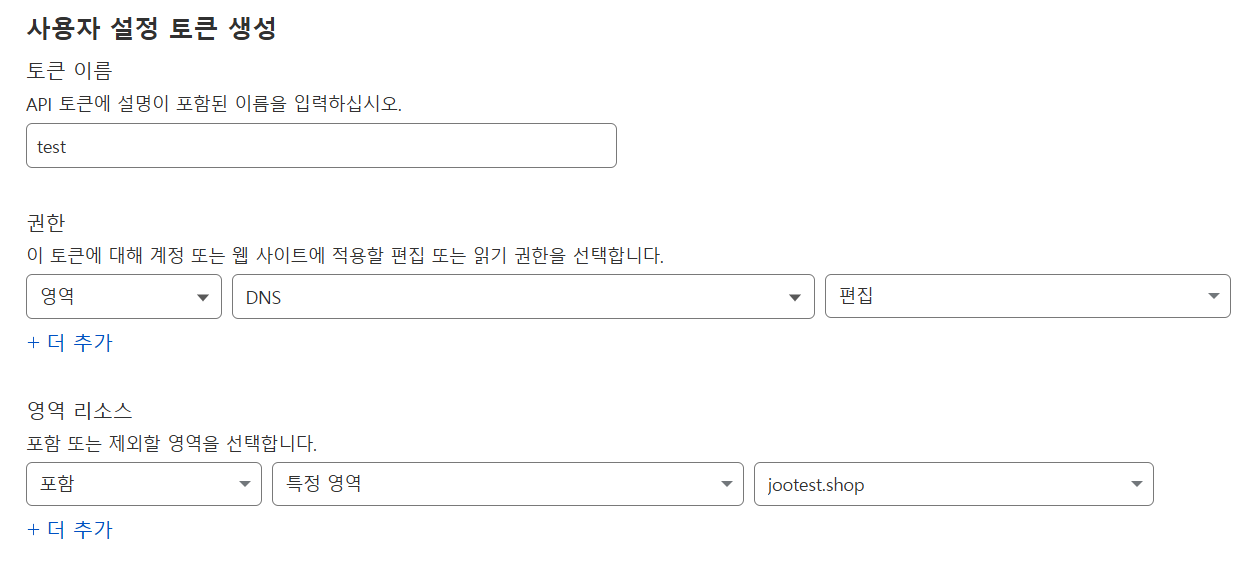
cloudflare에서 토큰 발급 받기
cloudflare 로그인 -> 계정 api 토큰 -> 토큰 생성 -> 사용자 설정 토큰 생성 -> 생성된 토큰 복사 저장하기
cert manager 설치하기
kubectl apply -f https://github.com/cert-manager/cert-manager/releases/download/v1.18.2/cert-manager.yaml

# delete로 바꾸면 삭제임.
kubectl delete -f https://github.com/cert-manager/cert-manager/releases/download/v1.18.2/cert-manager.yaml

# 설치 확인
kubectl get pods -n cert-manager
cloudflare 토큰으로 cert-manager 네임스페이스에 secret 만들기
kubectl create secret generic cloudflare-api-token-secret \
  --from-literal=api-token='여기에_Cloudflare_API_Token' \
  -n cert-manager
ClusterIssuer 생성 (DNS-01)
apiVersion: cert-manager.io/v1
kind: ClusterIssuer
metadata:
  name: letsencrypt-dns
spec:
  acme:
    server: https://acme-v02.api.letsencrypt.org/directory
    email: admin@company.com << 이 부분 수정. 인증서 발급 관련 알림 이메일
    privateKeySecretRef:
      name: letsencrypt-dns-key
    solvers:
      - dns01:
          cloudflare:
            email: your-email@example.com # << 이 부분 수정. Cloudflare 계정 이메일 (API 토큰과 함께 인증용)
            apiTokenSecretRef:
              name: cloudflare-api-token-secret << 이 부분 수정(위에서 토큰으로 만든 시크릿)
              key: api-token << 이 부분 수정(시크릿 만들 때 입력한 from literal)
certificate.yaml 만들기
apiVersion: cert-manager.io/v1
kind: Certificate
metadata:
  name: jootest-tls
  namespace: istio-system  # <<< 이 위치에 secret도 만드는데 이거 istio ingress pod랑 같은 네임스페이스이어야 함.
spec:
  secretName: jootest-tls # << 이 이름으로 시크릿을 만든다.
  issuerRef:
    name: letsencrypt-dns # << 이거 이름 확인
    kind: ClusterIssuer
  dnsNames:
    - jootest.shop
certificate를 만들면 저 시크릿 이름 비슷하게 시크릿을 만드는데 시간이 지나면 저 이름과 같은 시크릿만 남는다.
시간이 좀 걸린다.
kubectl describe certificate jootest-tls -n istio-system

# 시크릿 만들어지고 시크릿 안에 있는 내용 확인
kubectl get secret jootest-tls -n istio-system -o jsonpath='{.data.tls\.crt}' | base64 --decode | openssl x509 -text -noout
apiVersion: apps/v1
kind: Deployment
metadata:
  name: nginx-deployment
  namespace: app
spec:
  replicas: 2                  # 생성할 Pod 개수
  selector:
    matchLabels:
      app: nginx
  template:
    metadata:
      labels:
        app: nginx
    spec:
      containers:
      - name: nginx
        image: nginx:1.25.2
        ports:
- containerPort: 80'배운 내용 > Kubernetes' 카테고리의 다른 글
| [k9s] Windows 윈도우에서 Chocolatey 설치하고 k9s 설치하기 (2) | 2025.10.15 |
|---|---|
| Windows에서 kubectl -> k 단축키 설정하기 (0) | 2025.10.14 |
| (5) Tekton 설치 + cephFS PVC 캐싱 (0) | 2025.09.29 |
| (4) CephFS VS NFS 성능 테스트 (0) | 2025.09.29 |
| (3) HAProxy VM에 NFS 서버 구축 (0) | 2025.09.29 |
